
Data Loader is loading "VVVV" instead of data in target forms?
Why is the load through keystrokes doesn't proceed properly?
Why Some fields are getting missed in Macro Loading?
Is Forms Data Loader used only for Oracle Applications?
What Key Strokes I can Use in Macro Loading?
Which File Extensions are used for Macro Loading file and Forms Playback File
Does Forms Data Loader supports Multiple Languages Such as Arabic, Chinese etc. ?
How do I select a Check Box Value in Macro Loading?
Can I use Forms Data Loader for entering data through HTML Forms?
How do I select values from Predefined Drop down list?
Can I run a macro load automatically?
Are there any new templates available?
What is HTML Forms Data Loader?
Does HTML Forms Data Loader supports Pop Ups for LOV fields
How to set a value to null in HDL
How can I delete the contents of a field in HDL?
Why I am not seeing the recorded files or Problems in Forms Record and Playback.
I am able to record successfully but not able to playback in Forms Data Loader?
What is the limitation in Forms Data Loader Trial Edition?
How do I get
support?
What is the difference between Forms Data Loader Standard Edition and
Professional Edition
Ans. This usually happens if your target application form is running
in Remote Desktop or Virtual Server Window, such as Citrix etc.
To load the data properly in this
scenario, please check the "Use Alternate Method for processing Macros"
checkbox
in "Choose Load Settings Options
Window as shown below

If the above settings is not working. Then you can properly load data by sending it as keystrokes instead of copy pasting. To send the data as keystrokes please put a forward slash "\" in front of data to send it as keystrokes. Example shown below

OR
Ans. There can be many reasons
If you are loading data in Oracle Apps, we recommend Forms Record and Playback loading. Which is more reliable and nearly 25 times faster than macro loading and stops the load whenever an error comes
Ans. No, you can use FDL to load the data in any active window, whether it is customized application form or HTML form. But FDL contains special shortcuts for loading the data in Oracle Applications.
Ans. Please click here to see the list of keystrokes
Ans. For Macro Loading Forms Data Loader uses (*.dlf) Extension and for Forms Playback File it uses (*.fdl) extension.
Ans. Yes, If you want to use Forms Data Loader for languages other than default English such as Chinese, Korean etc, you need to setup Windows operating as follows
In Windows 7 do the following
In Windows XP do the following
1. Click on "Start Menu" -> "Settings" -> "Control
Panel" menu;
2. Double-click on "Regional Options" icon;
3. Select a non-English language you want to use, for example Simplified
Chinese, in "Language settings for the system" box under "General"
option;
4. Set "Simplified Chinese" as the default language, this step is
required.
Ans. By entering a \{SPACE} keystroke in the cell
Ans. Yes, you can use Forms Data Loader Macro loading feature to load data in HTML Forms through Macro Loading. But we strongly recommends you to use our special tool HTML Forms Data Loader for this purpose. Which loads data much faster and accurately than macro loading.
Ans. By entering the initial characters as keystrokes in the cell. For example if the list is like this and you want to select "Argentina"
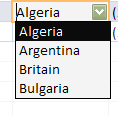
then, as you see if you press "A" once "Algeria" will get selected and by again pressing "A" , "Argentina" will get selected. So you can enter a keystroke like this \AA.
Ans. Yes, you can by entering *MC(x,y) in the spreadsheet cell. X means X - Screen Coordinate and Y means Y - Screen Coordinate. For example if you enter *MC(430,240) then FDL will simulate a mouse left click on the screen at the 430,240 coordinate while loading. To capture exact coordinates please use our Get Screen Coordinate Tool by clicking on the Tools Menu.
Ans. Yes if you have already saved a macro load and ran it successfully then, you can run the load again without any interaction by using command line argument "-run". For example if you want to run a macro load by name "test.dlf" then you can create a shortcut by specifying the following command
C:\Program files\Forms Data Loader\FDLoader.exe -run c:\test.dlf
The above command will automatically launches Forms Data Loader, loads the test.dlf file and starts loading in the target application form without any user interaction. Please note that the target application window, which was used when you run the test.dlf first time, must be open otherwise FDL will show a dialog to start the target application before continuing.
Ans. Keep looking at this website we publish new templates regularly.
Ans. HTML Forms Data Loader is specially meant for loading data into Web Forms. It provides 100% reliable loads as compared to Macro Loading. For more information please click here
Ans. Yes HDL does handle LOV Pop Ups windows.
Ans. If you want to set a value of Text field as NULL during playback then please enter <HDLNull> as text. This feature is added in HTML Forms Data Loader Version 3.3.
If you are using an old version then you need to manually add two keystrokes columns "\^a" (Select all) and "\{DEL}" (Delete) after the field which you want to set to blank.
For Example if you want to delete the contents of of a field "Inactive Date" then please add two keystrokes columns as shown below

Please remember that you should not leave the field contents blank in the particular cell in HDL sheet. Otherwise HDL will skip this field during playback and subsequent keystrokes will not work.
Ans. There could be various reasons. Please check that
Ans. If you are able record but not able to playback. Then, please check that
Ans. The Trial Edition contains all the features except it doesn't load more than 25 rows. otherwise, whatever feature is there in Registered version it is available in Trial Version.
Ans. We provide unlimited support through email for registered users of Forms Data Loader. Please write to us at support@formsdataloader.com
Ans. Forms Standard Edition supports only Macro Loading whereas, Professional Edition supports both Macro loading and Oracle Forms Record and Playback loading.
© Interface Computers All Rights Reserved